
ALERT: This article is currently being updated due to code changes that are now required to perform these tasks in newly created apps. The steps below are no longer accurate and will revised in the future. This message will be removed after the new steps are documented and tested and this page has been updated to reflect the changes.
Overview
On several features such as the Custom Page feature in our platform, you will find the WYSIWYG (What You See Is What You Get) Editor. You can use this editor to add links, images, videos or send an email link.
This intent of this article is to explain how to add call, text, and email links to any of the features that allow using the WYSIWYG or HTML Editor. For our example we’ll use the Custom Page feature and the text option. While there are many other ways to add links and touch to call capability into your app, sometimes you need to do something more customized and this method provides flexibility that might be useful in such cases. Another feature to consider is the Source Code Feature which allows additional flexibility and customization.
Information
You can integrate Call, Text and Email links in two ways:
- By using the Link option in the Toolbar.
- By clicking the HTML option for embedding the coding.
Process
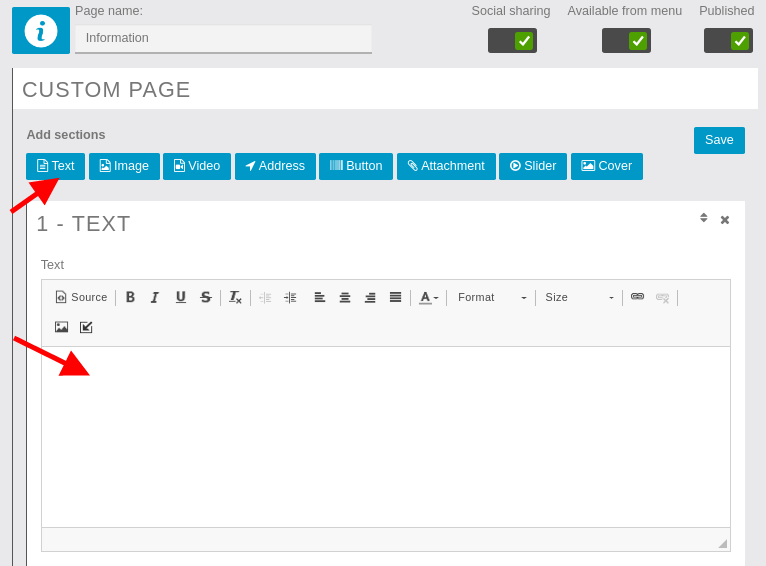
Here is the example of the WYSIWYG Editor:
Creating a Call, SMS, or Email Link
- Using the Link Option: Simply highlight the text or image you want to create the link for, then click the hyperlink option. In the Link URL field enter:
- tel: followed by the phone number to create a Call link.
- sms: followed by the phone number to create a Text Message link.
- mailto: followed by the email address to create an Email link.
- Using the HTML Option: You can achieve the same thing using the HTML option. Just click the HTML button
and add the following codes wherever you want the links to appear:- Call:
Text or Image URL Here - Text:
Text or Image URL Here - Email:
Text or Image URL Here
- Call:
Note: You can get creative with Email settings as well. Check out how to Link Email creatively for some additional options.
Confirmation
Verify that the Call, Text and Email Links have been added successfully using into your Custom Page with the WYSIWYG Editor.
Test the links you have created to ensure that they operate as intended before (re)publishing your app.
