Overview
The Social Wall feature is an easy way to increase user engagement with your app. The feature allows users to comment, ask questions, and discuss what they love about your business, service, community, or group.
Users can share photos, reply to each others’ comments, and view the location fellow users nearby.
Group Admins can engage with followers, post announcements, and get feedback.
The Social Wall feature is great for these types of businesses and organizations:
- Events
- Bands & Musical Artists
- Restaurants
- Communities
- Churches
- Schools
- Clubs & Organizations
- Groups
Here are a few use cases to consider with the Social Wall
- Attendees at events, rallies, and other large venues, can share information and feedback, setup meet times, and more.
- Members of communities can share information, with folks around them, safety concerns, where to find needed items, request help, feedback, etc.
- Create an in-app forum for users to communicate and share ideas. For example, a school app can use the Social Wall for the PTA to discuss school events and issues.
- Accumulate positive feedback with a reviews page. For example, a user can share their favorite dishes on the menu in your restaurant app.
- Church members could use the app to share needs and prayer requests increase engagement, outreach, communicate with volunteers, and more.
- Public officials could use the Social Wall to communicate with interested and engaged followers to exchange ideas, get feedback from constituents, make announcements, etc.
How to Configure the Social Wall
The Social Wall feature is highly customizable. It can be used as a simple news wall or as an advanced custom “Facebook-like” social media feature.
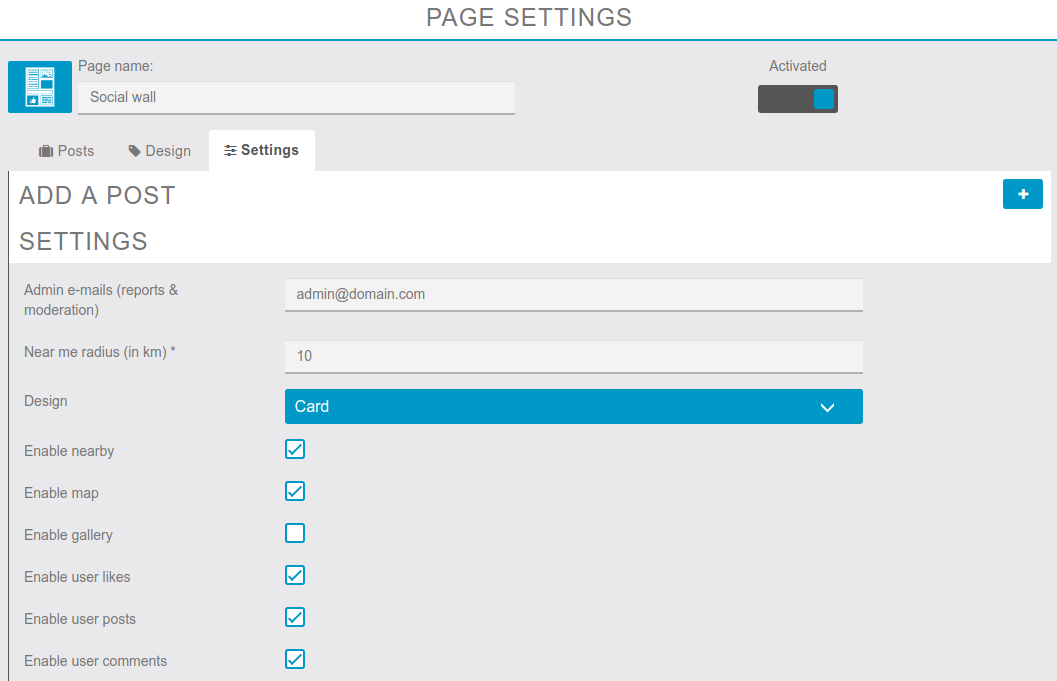
Settings
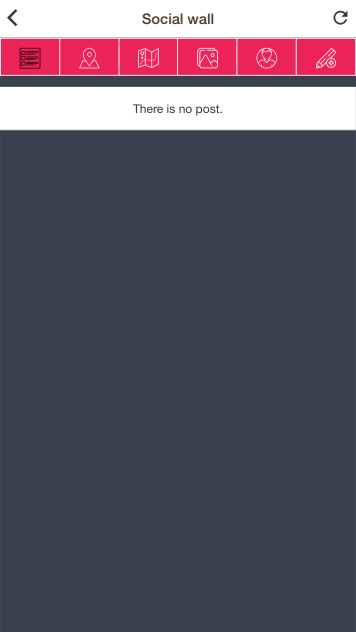
Social Wall from inside the App

To create a post, click on , or on your custom icon for “New Post”:
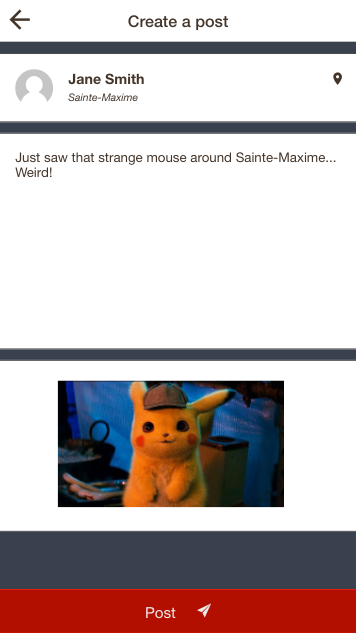

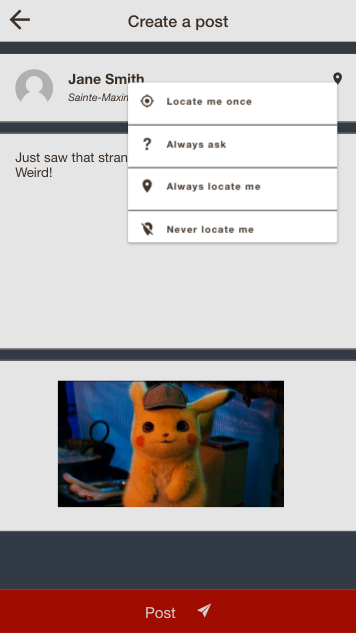
You can write text, and upload an image. If the GPS is enabled and active in your device, the post can be tied to your location. Click on the location icon and select your preference:


Then, you and the other users will be able to and your post (if enabled):

Here is the comment screen:
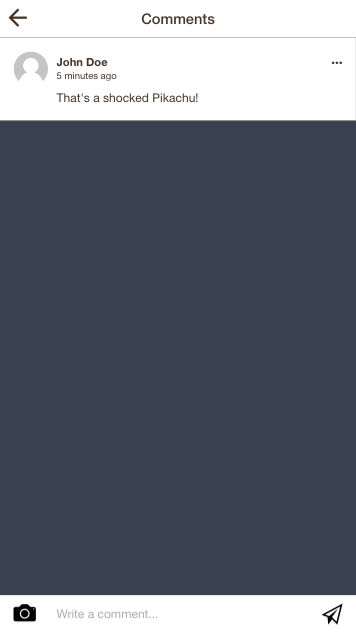
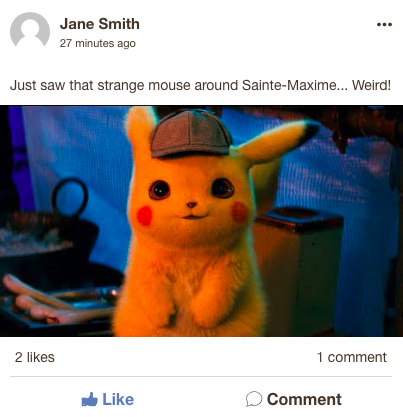

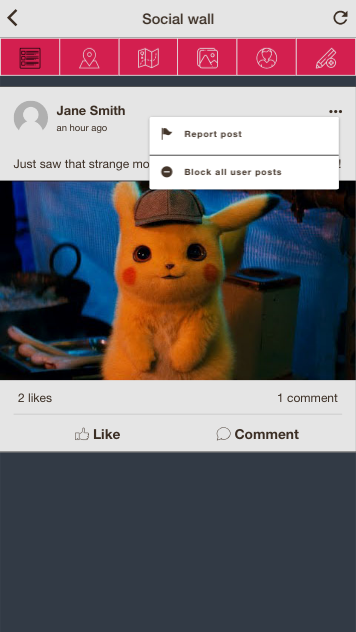
You can also report a post/news if you or your user feel that it breaks your rules and even block all user posts by clicking on the :
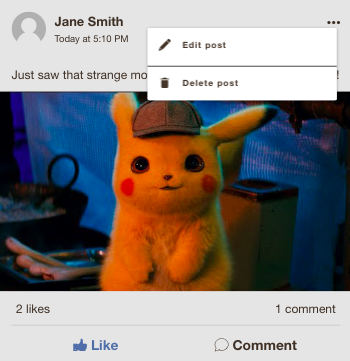
And as user, it is also possible to edit or delete your post by clicking on the :
Then, there is the “Near by”, that will just change the sorting of the posts/news according to the user’s location. Finally, there is the map section:

There is one post/news at the top. You can click on the “pins” to see the posts.

If there are GPS issues in the device, that icon will be displayed at the top right of the page. Clicking on it will display that message:
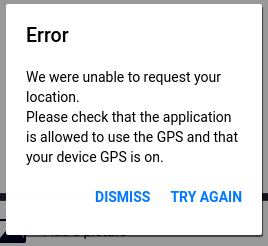

The button allows you to reload the page, after enabling/fixing the GPS.
Inside the Editor
In the Editor, you can edit and delete the posts of your users.

If you’ve chosen to disable user posts, the editor is the only place where you will be able to create a post, with the button next to “ADD A POST”:
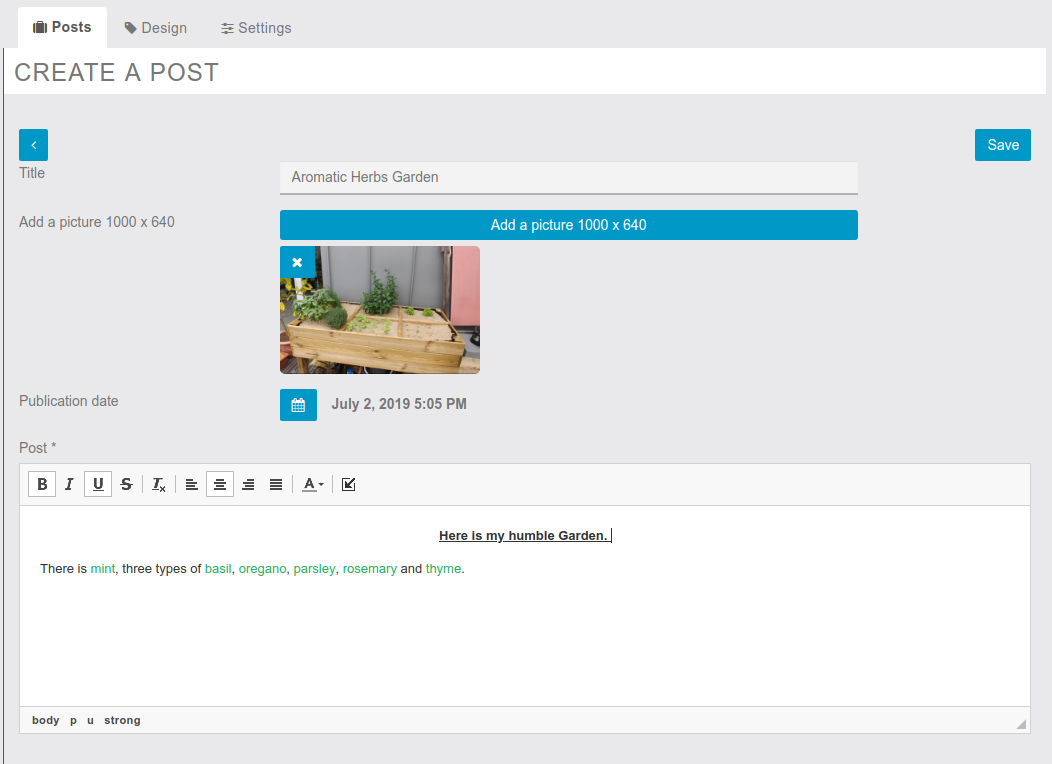
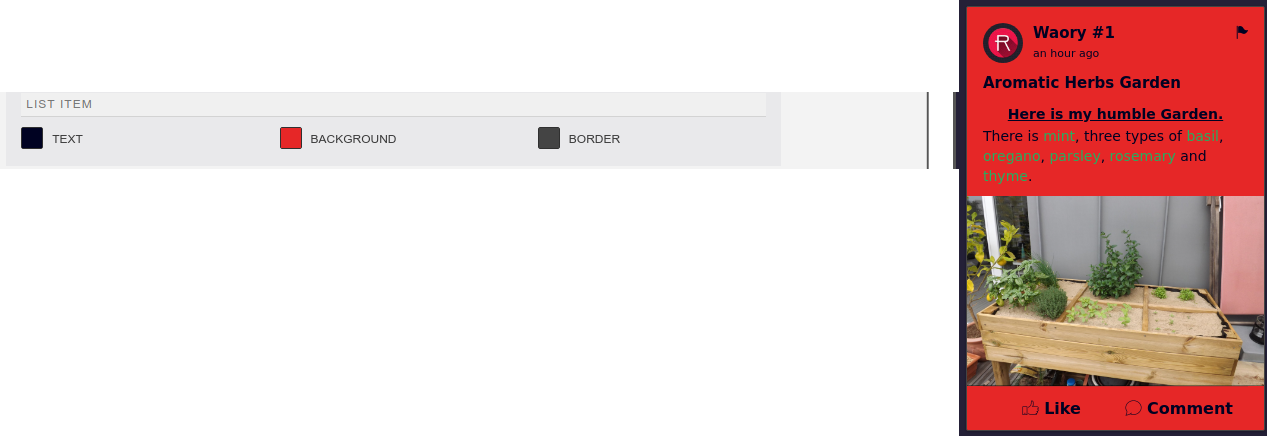
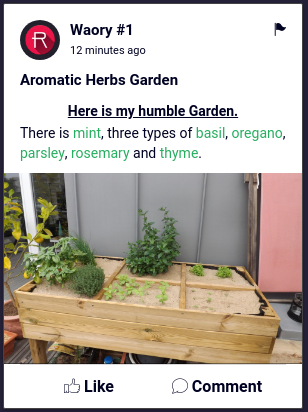
Here is the post in the app:
Customize the Colors
GPS Warning icon:

Button “Post”:

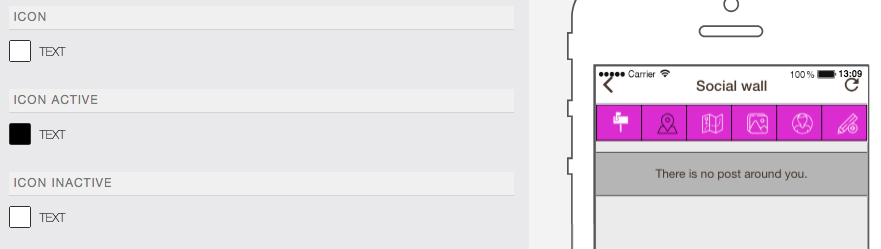
Icon bar:

Icons:
Post: